


Visit the Guermok Store
Guermok HDMI Capture Card 4K@60FPS, 1080P@240FPS USB 3.0 HDMI to USB A/C Video Capture Card for Streaming, Works with iPad, Switch 2/1, PS5/4, Xbox, Quest 3, Mac OS, Windows, Zoom, OBS, Camera
Brand: Guermok
Hardware Interface: USB 3.0
Video Capture Resolution: 4K
Operating System: Windows 11
Recommended Uses For Product: Game Streaming
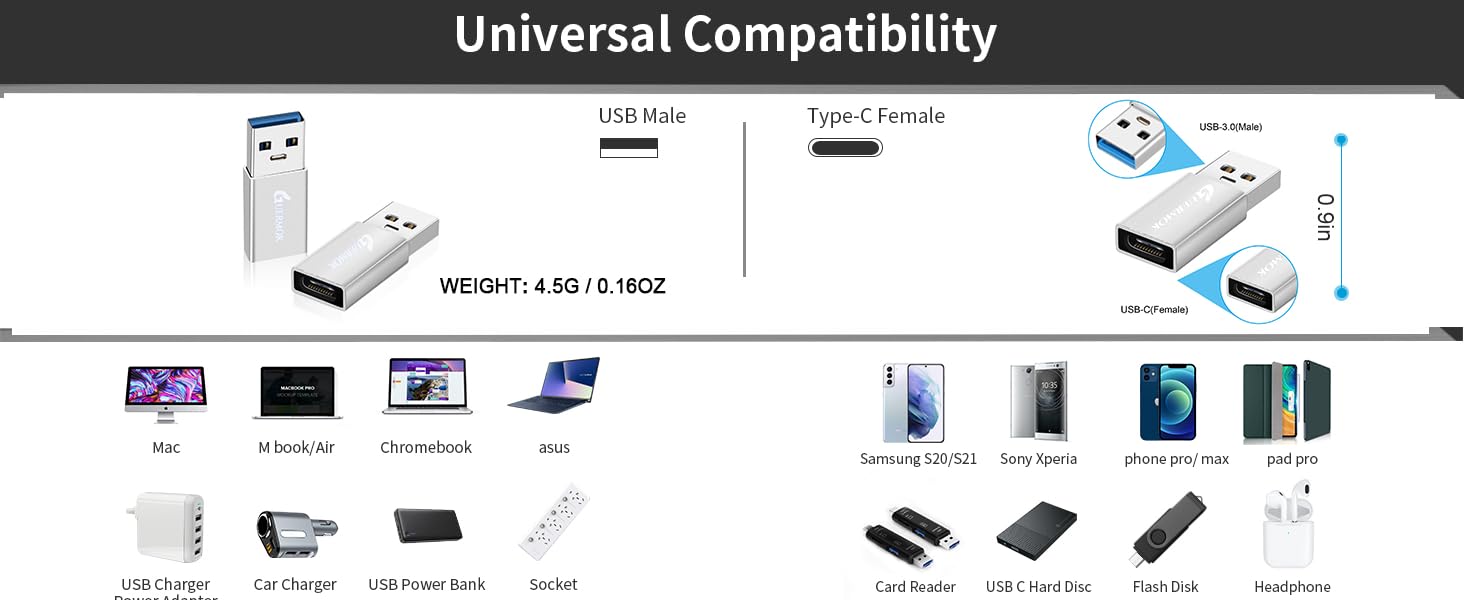
【4K 60FPS Input & Output with Ultra-Low Latency】This HDMI 4K video capture card supports up to 4K@60Hz input and output through USB 3.0, delivering smooth, vivid visuals for high-motion gameplay, VR capture, or iPad content. Ideal for professional streaming, recording, live streaming, and live broadcasting with minimal delay. Includes a USB-A male to USB-C female adapter, supporting connection via both USB-A and USB-C ports for maximum flexibility
【Versatile Format and Resolution Support】Compatible with MJPEG up to 4096×2160/3840×2160 at 60FPS, 2560×1440 at 144FPS, and 1920×1080 at 240FPS. YUY2/NV12 up to 2560×1440 at 50FPS, and 1920×1080 at 120FPS. Supports video formats including MJPEG, YUY2, NV12, and XRGB, providing flexibility for different streaming and editing needs
【Wide System Compatibility, No Drivers Needed】Plug and play on Windows 7/8/10/11, macOS, Linux, Android 5.0+, and iPadOS 17+. No drivers or external power required—just connect and start capturing instantly on your laptop, PC, or tablet
【Broad Device Support Across Streaming Scenarios】Works with iPad, MacBook, Switch/Switch 2, PS3/4/5, Xbox One, DSLR, webcam, camera, Quest 3/3s, TV Box, HDTV, and DVDs. This 4K@60Hz HDMI capture card enables smooth gaming capture, virtual meetings, online meetings, live streaming, live events, online teaching, or studio production
【Compatible with All Major Streaming Apps】Supports OBS Studio, Zoom, Streamlabs, YouTube Live, Twitch, VLC, PotPlayer, Vmix, HDMI Link, MoniCon, QuickTime, and more. Whether you're streaming gameplay, teaching remotely, recording content, or hosting online meetings, this capture card integrates into any workflow






The product supports 4K 60Hz input &4K 60Hz output. Please ensure that the cable you are using supports the corresponding resolution, such as 1080P or 4K, to ensure optimal video quality
There may be a slight delay in the capture (<40ms), but it is within an acceptable millisecond range and does not affect the video quality
The USB-C port (or USB-A when using a USB-C to USB-A adapter) is for signal output .
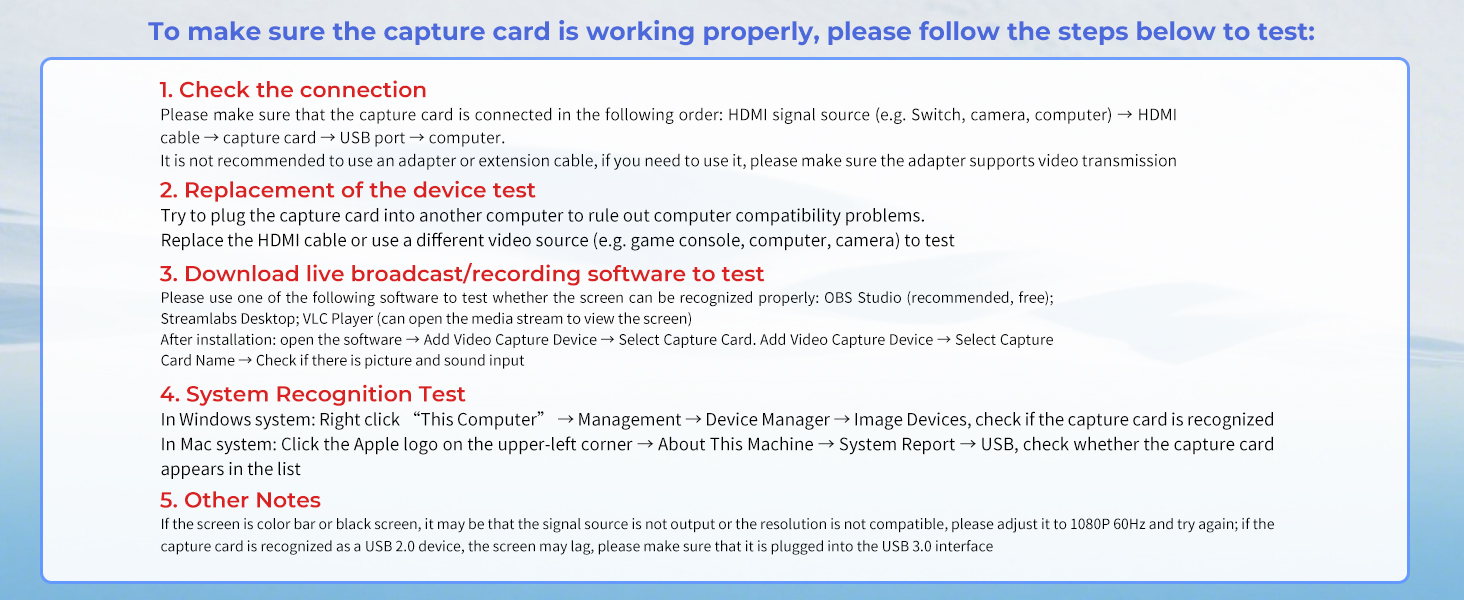
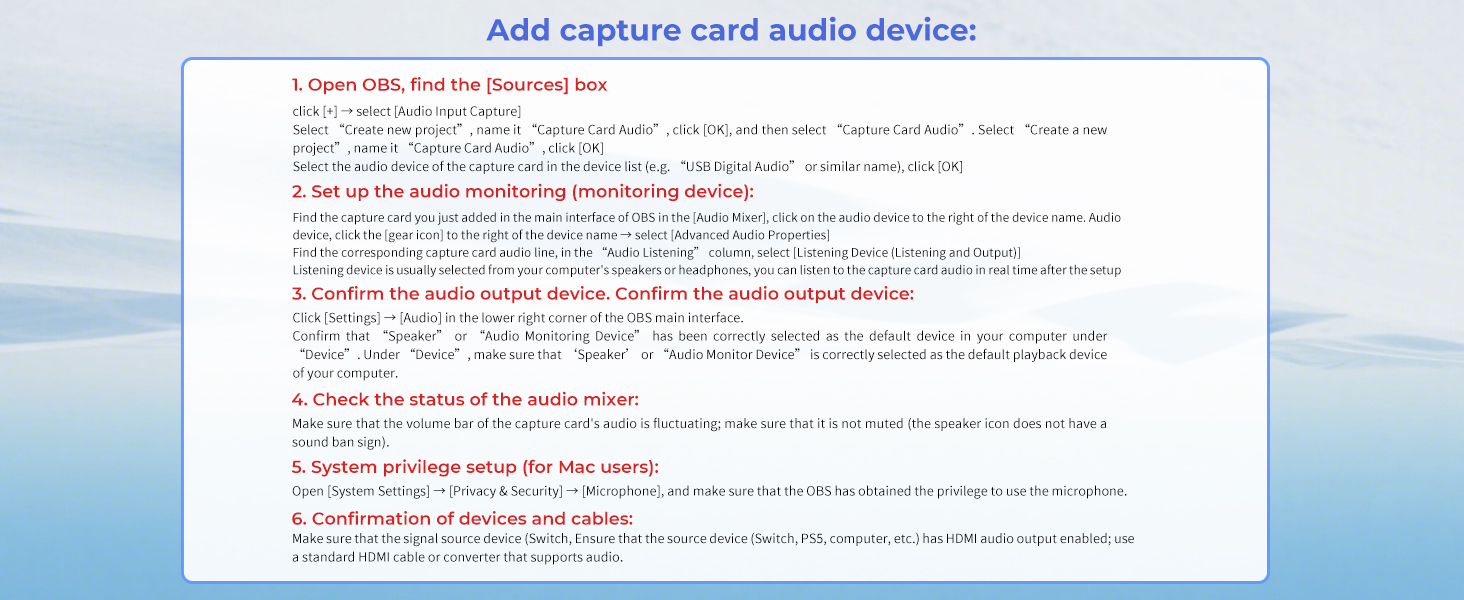
Please ensure your signal output device has corresponding video capture software, as OBS, to enable screen capture
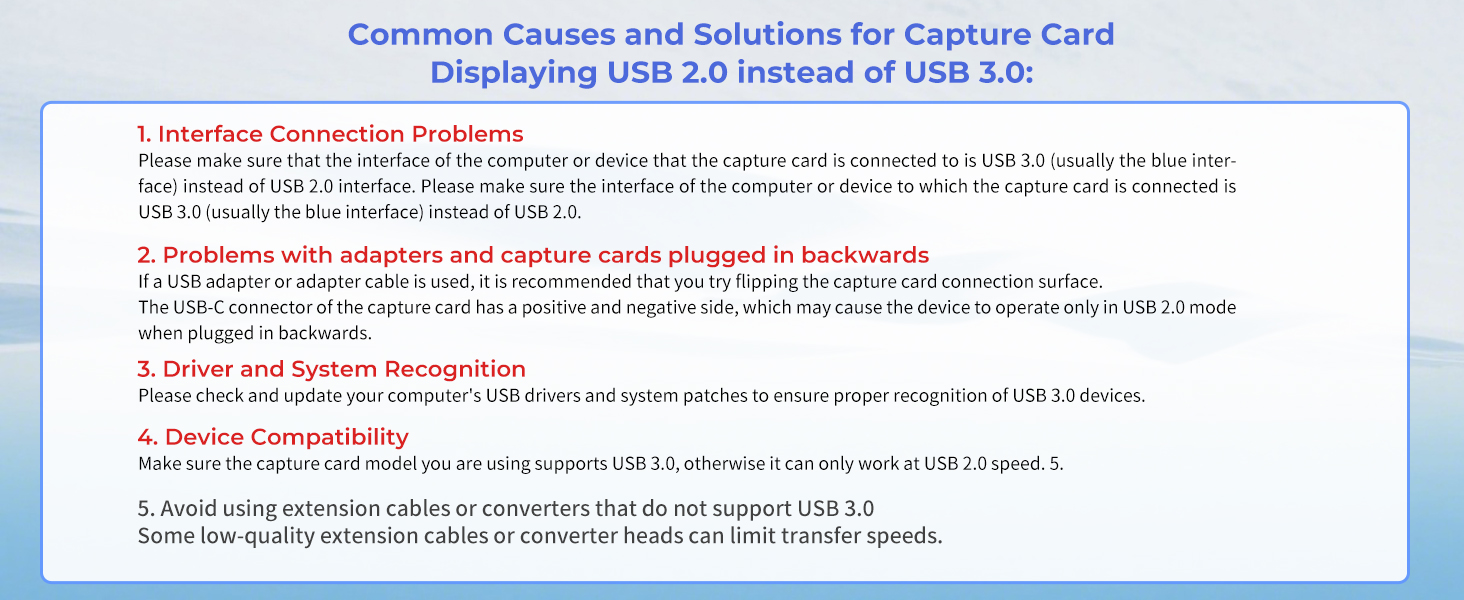
When using an adapter, if the device is recognized as USB 2.0, try using the other side with the USB-C port. Simply flip the capture card and reconnect it to be recognized as USB 3.0
Make sure the output format is compatible with the capture card. After checking everything, try reconnecting the devices and resetting the software. If "no signal" persists, try using a different APP
Please ensure your system is within the compatibility range. Some products may require disabling HD CP settings to function properly
Not all USB ports support 3.0 transmission. To ensure proper functionality, connect the device to a USB 3.0 port (often marked in blue or labeled "SS") and confirm your computer has the required USB 3.0 drivers installed

Compatible with Quest, Android, and HarmonyOS; Note that HDMI LINK is not supported due to lack of 96kHz audio support, which may cause noise
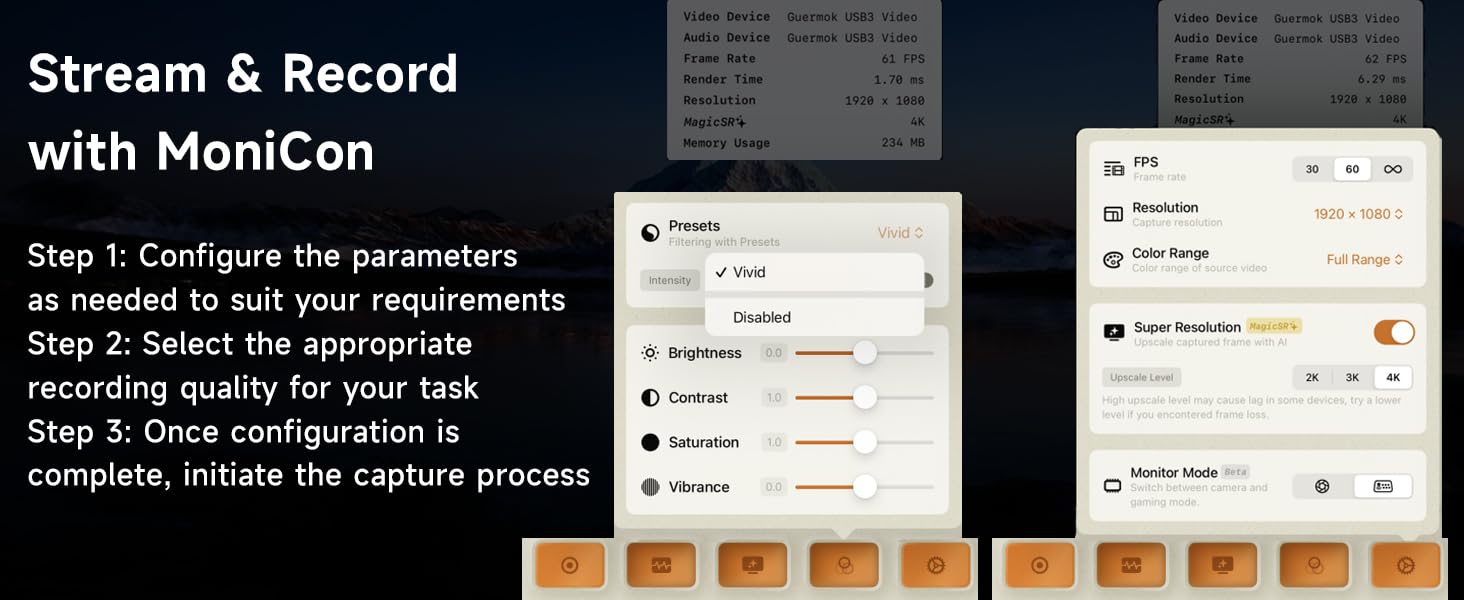
MiniCon allows you to transform your iPad into an external display, offering plug-and-play USB-C connection, low-latency performance, and crisp video—good for streaming and content creation on the go
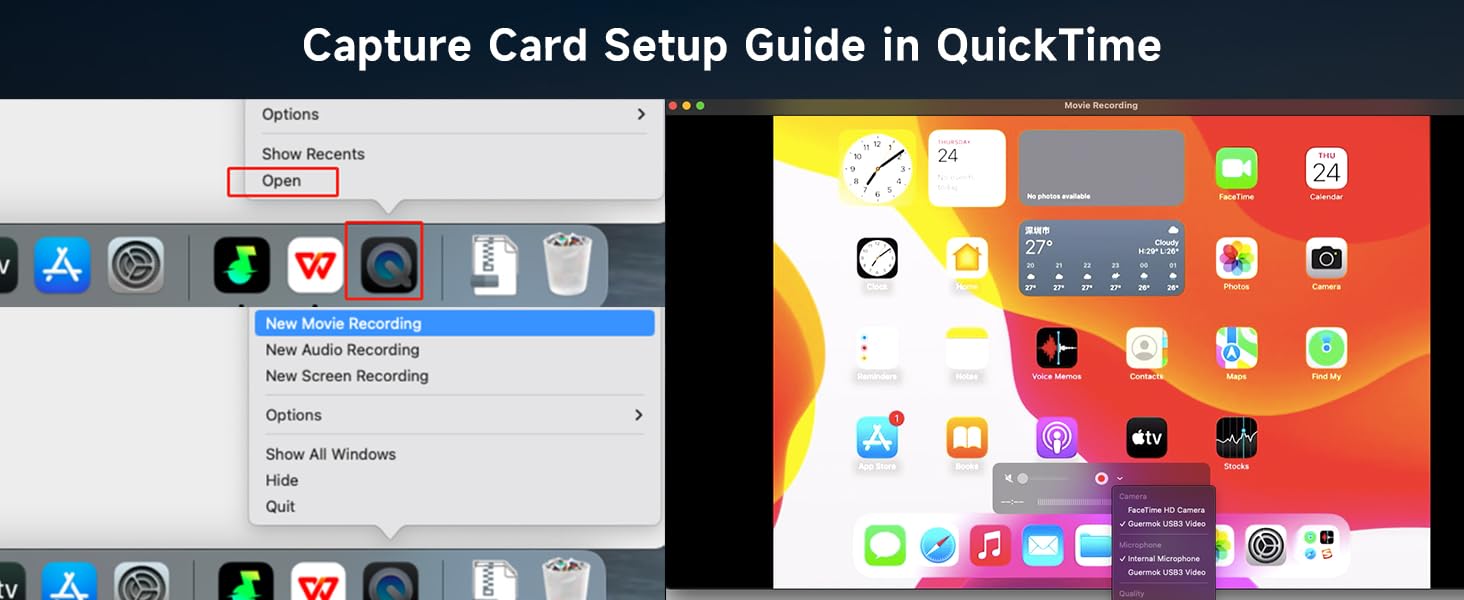
Using a capture card with QuickTime on Mac OS allows seamless, high-quality video recording and streaming. It offers easy integration with Mac's native tools, providing smooth performance
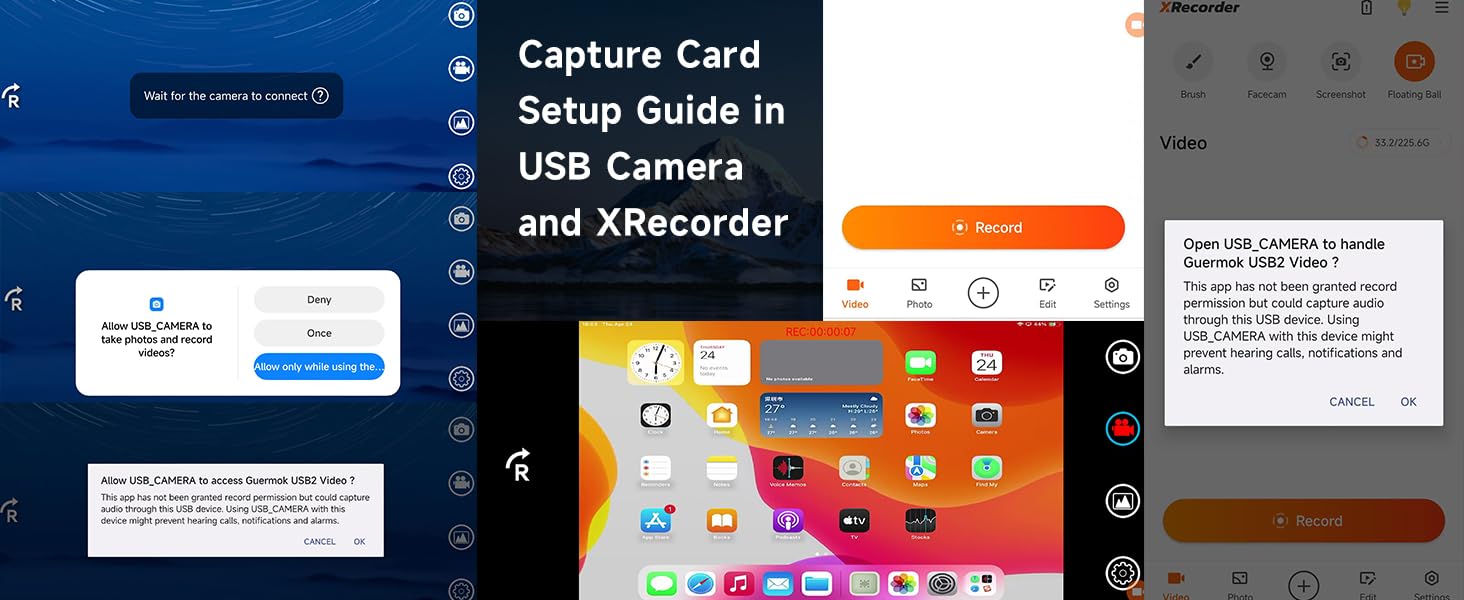
Record USB video and screen easily on Android with USB Camera & XRecorder. Easy plug & play setup, output via USB 2.0 or USB3.0, depending on the type of port on your phone or other devices
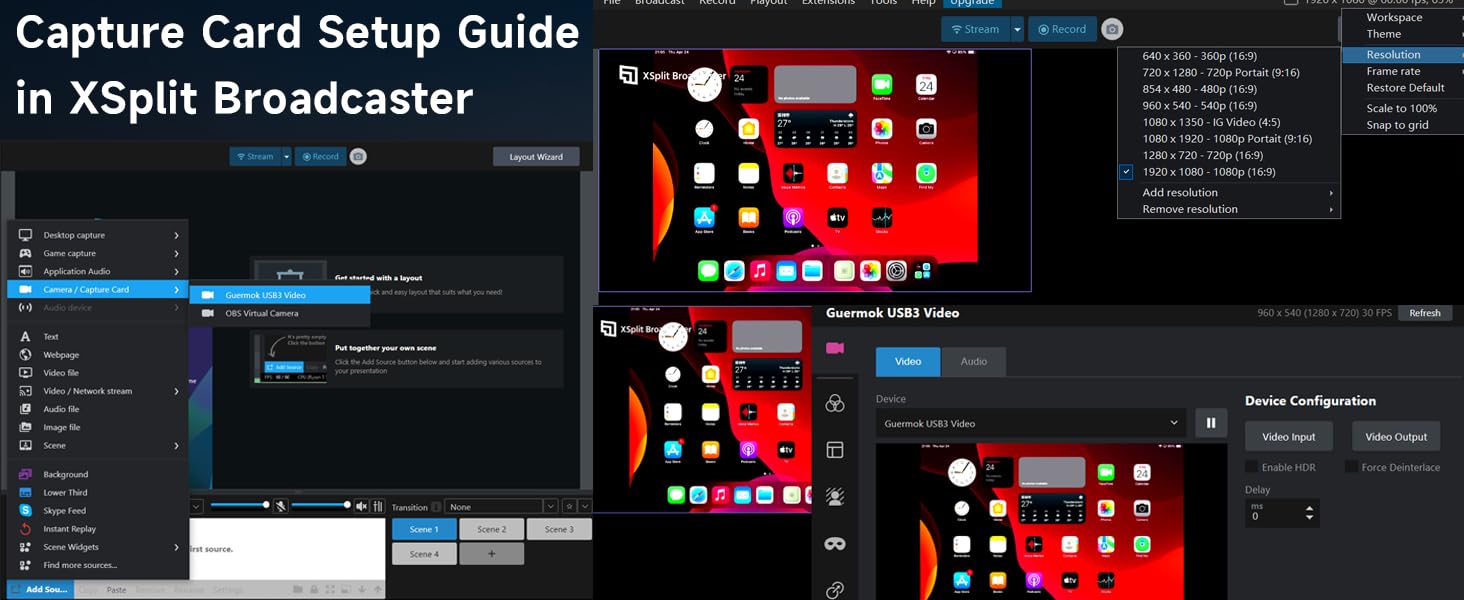
XSplit Broadcaster enhances capture card performance with seamless scene switching, pro-level audio/video mixing, and high-quality streaming or recording on PC
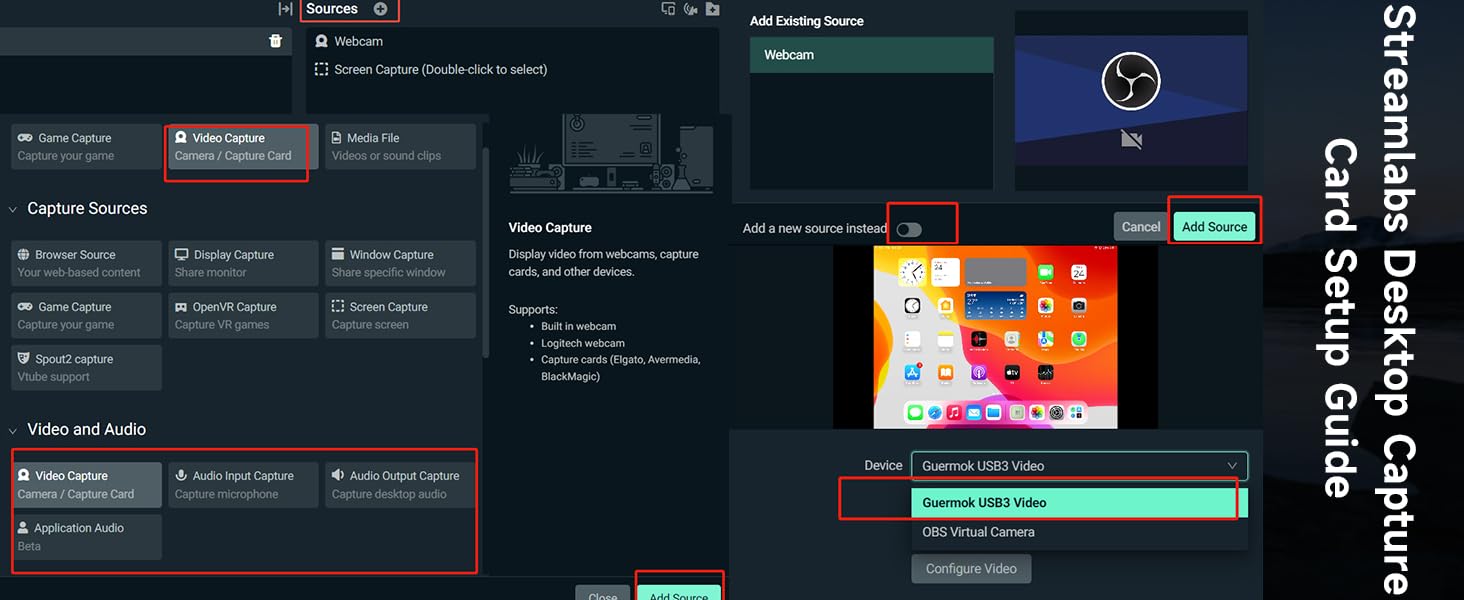
Streamlabs Desktop combines pro-level features with effortless setup for seamless streaming, making it easy to manage your live broadcasts and content creation all in one place


Add a new source
Select " video capture device"/ "audio and video input capture"
Rename and Click "OK".If there are multiple video sources, it is recommended that you cancel all of them and keep only one, so as to ensure that the captured screen is displayed properly.
evice Choose “ USB3 Video”→Click “ activate”→Resolution/FPS choose “ customize”→Resolution select "1920 x 1080"→FPS choose “60”→Video format select " MJPEG"& Click “OK”. If no image, click "Defaults"
Select " Studio Mode"
Click " Start Recording"
Not all USB-C interfaces support video output function. USB-C is just an interface type which can support multiple functions (e.g. data transfer, charging, video output), but the specific function depends on the hardware design
Guermok 4K60FPS Video Capture Card


Guermok HDMI Capture Card
Guermok HDMI Capture Card
Guermok HDMI Capture Card
Guermok HDMI Capture Card
Guermok HDMI Capture Card
Guermok HDMI Capture Card
Guermok HDMI Capture Card